How to Upload Files via the SiteWorx File Manager Print
- 0
You can use SiteWorx's inbuilt file manager instead of an FTP program.
1. Log in to your SiteWorx account.
2. In the File Manager section, click on File Manager.
3. If you have multiple domains, choose the appropriate domain from the drop-down menu and click on Login.
4. Navigate to the directory where you want to upload your file. For uploading a file in the HTML directory, click on it.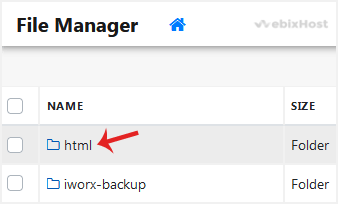
5. Click on Upload.
6. Click the upload box to choose a file from your computer. The upload process will begin automatically. Alternatively, drag and drop files from your computer directly into the upload box.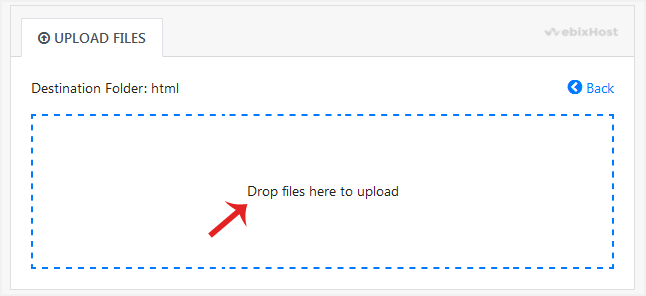
Your files have been uploaded. You can now manage them directly from the File Manager.
Was this answer helpful?
Related Articles
How to Reset Your SiteWorx Account Password
After you access your SiteWorx account, follow these steps to reset your password:
1. Log in to...
How to Create a Directory or Files in the SiteWorx File Manager
SiteWorx File Manager is handy for managing your website files.
1. Log in to your SiteWorx...
How to Edit File in the SiteWorx File Manager
You can use SiteWorx's inbuilt file manager to edit files on your website.
1. Log in to your...
How to Access AWStats in SiteWorx
AWStats is an open-source web analytics tool. Follow the steps below to access your AWStats.
1....
How to Access Webalizer in SiteWorx
Webalizer is an open-source web analytics tool. Follow the steps below to access Webalizer.
1....