How to Change Your Email Password in SiteWorx Print
- 0
You can change your email password in SiteWorx through the following steps:
1. Log in to your SiteWorx account.
2. In the Email section, click on Mailboxes.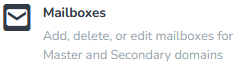
3. Click on the Pencil icon showing next to the email account.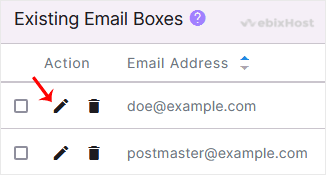
4. Enter the new password or click on Magic Wand to generate one.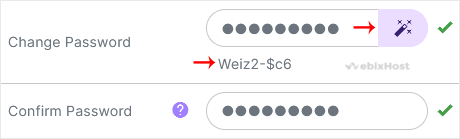
5. Click on Save.
You should see a success message.
Was this answer helpful?
Related Articles
How to Create an Email Account in SiteWorx
To create a new email account, perform the following steps:
1. Log in to your SiteWorx account....
How to Remove an Email Account in SiteWorx
To remove an email account, perform the following steps:
1. Log in to your SiteWorx account....
How to Access Email from SiteWorx Webmail
You can access your Email account from Webmail.
1. Log in to your SiteWorx account.
2. In...
How to Forward an Email to Third-party Email Providers
1. Log in to your SiteWorx account.
2. In the Email section, click on Aliases.
3. Click on...
How to Create or Remove the Email Autoresponder in SiteWorx
You can use the email autoresponder for an automated response to your email subscribers or...