How to Disable Two-Factor Authentication in SolusVM 2 Print
- 0
Follow this instruction to disable two-factor authentication from your SolusVM 2 account.
1. Log in to your SolusVM 2 Control Panel.
2. Click on Account in the left-hand sidebar.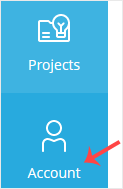
3. Click on Two-Factor Authentication.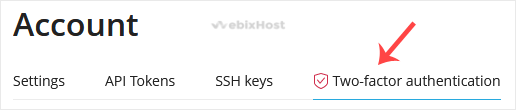
4. Click Disable and confirm again.
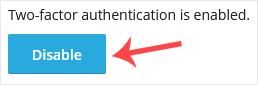
5. SolusVM will prompt you for authentication. Enter your SolusVM password to continue.
It should display a success message showing that two-factor authentication has been disabled. Make sure to re-enable it later to keep your account secure.
Was this answer helpful?
Related Articles
How to Log in to SolusVM 2 Control Panel
You can find the Control Panel URL, username (email address), and password in your VPS welcome...
How to Check if Your VPS is Online or Offline in SolusVM 2
You can check the status of your SolusVM Virtual Private Server (VPS) to see if it is online or...
How to Check VPS Specifications and Virtualization Info in SolusVM 2
You can check VPS specifications such as RAM, disk space, virtualization, IP Address, etc., from...
How to Enable Two-Factor Authentication in SolusVM 2
Two-factor authentication helps secure your account and prevent unauthorized access by adding an...
How to Change the SolusVM 2 Control Panel Password
If you can access your SolusVM 2 VPS control panel, you can easily change your SolusVM 2...