How to Forcefully or Gracefully Shut Down the VPS in SolusVM 2 Print
- 0
You can shut down the VPS in two ways - forcefully or gracefully in SolusVM 2.
How to Gracefully shut down the VPS in SolusVM 2?
1. Log in to your SolusVM 2 Control Panel.
2. Under Projects, click on the project that contains your VPS.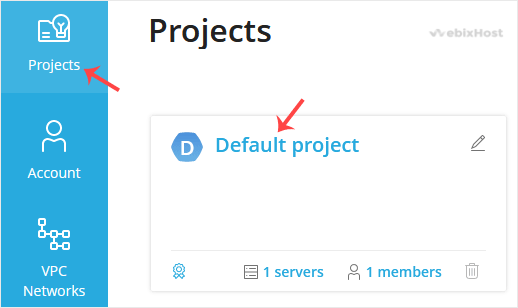
3. Click on the appropriate VPS.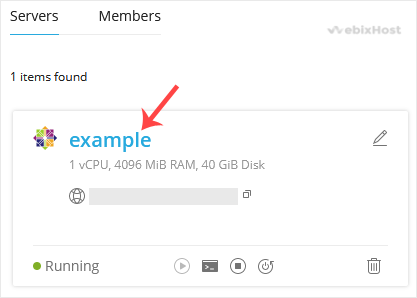
4. Click on Stop.
5. Click Yes to confirm.
It may take some time for the VPS to shut down. Then, it will display a message.
For forceful shutdown, you can click the Power Off option in SolusVM 2.

How to shut down the VPS via the Command Line?
(This option is similar to pulling the power cord from your computer, and there is a chance for data loss.)
1. Log in to your SSH Client.
2. Enter the following command:
poweroff
The VPS will shut down as soon as the command is executed.
Was this answer helpful?
Related Articles
How to Reboot/Restart VPS in SolusVM 2
You can restart VPS via the command line or SolusVM 2.
How to Reboot/Restart a VPS via SolusVM...
How to Start/Boot Your VPS in SolusVM 2
If your VPS is down/offline, you can start it using SolusVM 2.1. Log in to your SolusVM 2 Control...
How to Access VPS via VNC in SolusVM 2
You can access your VPS via VNC in an emergency, such as when a firewall blocks your IP, the...
How to Reinstall an OS Using SolusVM 2
You can easily Install/Reinstall the operating system using SolusVM 2. However, note that this...
How to Install an OS from ISO in SolusVM 2
Installing an OS from an ISO image allows customization, such as partition editing and other...